





 +91 88949 00142
 +1 (307) 435-9605
WooCommerce maintenance means backing up your store, updating WordPress, WooCommerce and plugins on a staging site first, testing checkout, and checking security and speed on a fixed schedule. Most stores need weekly backups and order checks, monthly updates and checkout tests, and a quarterly plugin audit and full restore test.
Key points
- Back up daily, keep 30 days of copies, and test a full restore every quarter.
- Update WordPress, WooCommerce and plugins on a staging site first, and test checkout before and after going live.
- Freeze changes two weeks before Black Friday and other peak sales.
WooCommerce moves fast. Between September 1 and November 11, 2026 it shipped seven releases, and three of them were security fixes (WooCommerce release posts). Each one is a chance to fix a problem or, if you update carelessly, to break checkout on a busy day. This checklist is the routine Suave Creators uses on the WooCommerce stores we support. Print it, put it in your calendar, and work through it in order.
What Is WooCommerce Maintenance?
WooCommerce maintenance is the regular work that keeps an online store on WordPress safe, fast and able to take orders. It covers backups, updates to WordPress core, WooCommerce, your theme and plugins, security monitoring, speed checks, database clean-up and testing the buying journey. Good maintenance is boring by design: it finds problems on a staging site, not in front of customers.
Why Does WooCommerce Maintenance Matter?
Maintenance protects revenue, customer data and search rankings. A store that skips it usually fails in one of four ways:
- Security. Most WordPress attacks target known holes in plugins that already have a fix. An unpatched plugin is an open door to card skimmers, spam pages and stolen customer data.
- Compliance. If you take card payments, the PCI DSS standard expects critical security patches to be installed within one month of release. Hosted payment fields from Stripe or PayPal reduce your scope, but your site still has to be kept up to date.
- Sales. A broken checkout or a failed payment email loses orders silently. Many store owners only find out when a customer complains.
- Rankings. Slow pages, broken links and errors hurt Core Web Vitals and crawling, which lowers your visibility in Google and in AI search answers.
The cost of an hour of downtime on a sale day is usually far higher than a month of careful maintenance.
How Often Should You Maintain a WooCommerce Store?
Most stores need daily backups, monthly updates tested on a staging site, and a full audit every quarter. Busier stores do the same tasks more often:
| Store size | Backups | Updates | Checkout test | Full audit |
|---|---|---|---|---|
| Small (under 20 orders a day) | Daily, automatic | Monthly | Monthly | Twice a year |
| Growing (20 to 200 orders a day) | Daily + before every change | Every 2 weeks | After every update | Quarterly |
| High volume (200+ orders a day) | Real-time or hourly | Weekly, staged | After every update, automated | Quarterly + before peak season |
What Tools Do You Need to Maintain a WooCommerce Store?
You need six types of tools: backups, staging, security, uptime monitoring, speed testing and error logs. Many managed WordPress hosts include the first three.
| Job | What it does | Common options |
|---|---|---|
| Backups | Daily copies of files and database, stored off the server | Your host's backups, Jetpack VaultPress Backup, UpdraftPlus |
| Staging | A private copy of the store for testing updates | Your host's one-click staging, WP Staging |
| Security | Firewall, malware scans, login protection, vulnerability alerts | Wordfence, Sucuri, Patchstack |
| Uptime monitoring | Alerts you the moment the store goes down | UptimeRobot, Better Stack, Jetpack Monitor |
| Speed testing | Measures page speed and Core Web Vitals | PageSpeed Insights, Google Search Console, GTmetrix |
| Error logs | Shows PHP errors and failed actions | WooCommerce > Status > Logs, Query Monitor |
Pick one tool per job and avoid overlap. Two security plugins or two caching plugins on the same store often cause more problems than they solve.
What Should Be on a Weekly WooCommerce Maintenance Checklist?
Weekly checklist
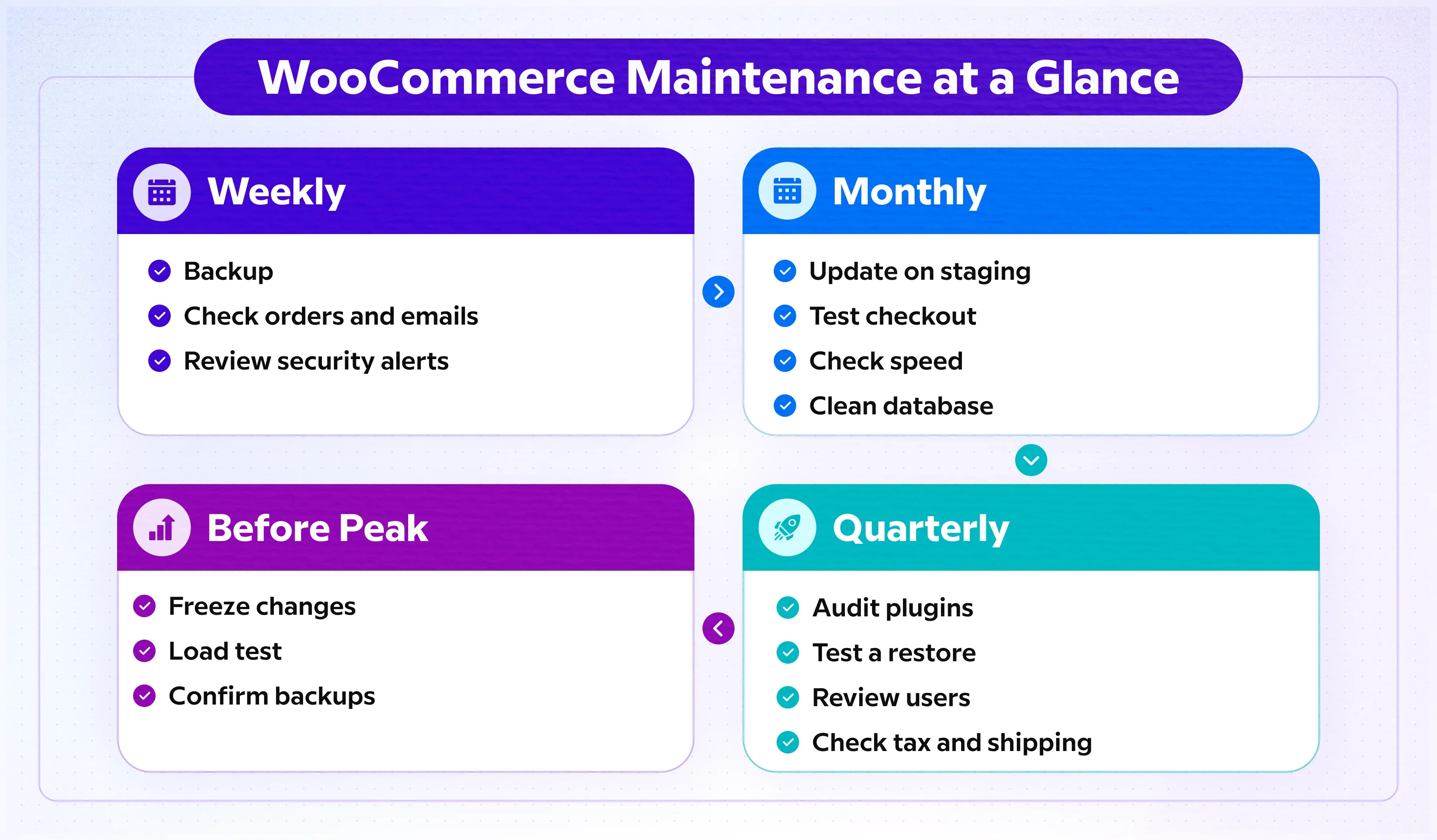
- Back up the store: Confirm last night's backup finished and includes the database and files. Keep at least one copy off your web host. Keep 30 days of backups so you can go back past a slow-spreading problem.
- Check orders, payments and emails: Compare this week's orders in WooCommerce with your payment gateway (Stripe, PayPal or Authorize.net). Look for orders stuck in "Pending payment" or "Failed". Send yourself a test order email and a password-reset email.
- Review security alerts: Read your security plugin or host alerts for failed logins and file changes. Check that SSL is valid and renewing automatically. Note any plugin flagged with a known vulnerability, and patch it this week, not next month.
What Belongs on a Monthly WooCommerce Maintenance Checklist?
Update WordPress, WooCommerce and plugins safely
Before you update
- Take a fresh backup
- Copy the live store to a staging site
- Read the WooCommerce release notes for breaking changes and template updates
- Check that your theme and key extensions list support for the new version
After you update
- Check WooCommerce > Status for outdated template files
- Test checkout on staging (card, PayPal, a coupon, shipping and sales tax), then repeat it on live after you push
- Watch error logs for 24 hours
Test checkout end to end
- Buy a real low-cost product with a card, then refund it
- Test PayPal or any express payment button
- Test a coupon, a shipping rate and sales tax for at least two US states
- Repeat on a phone
Check speed and Core Web Vitals
- Run your home, category, product and checkout pages through PageSpeed Insights
- Check Core Web Vitals in Google Search Console
- Compress any new large images
Clean the database
- Delete expired transients, spam comments and old post revisions
- Clear abandoned sessions
- Confirm High-Performance Order Storage (HPOS) is on and in sync, if your extensions support it
Related: if your pages are still slow after this, see key features every successful e-commerce website needs.
What Belongs on a Quarterly WooCommerce Maintenance Checklist?
Quarterly checklist
- Audit plugins and themes: Remove plugins you no longer use; deactivated plugins can still be attacked. Replace plugins with no update in 12 months. Look for several plugins doing small jobs that one lean custom plugin could replace (see e-commerce development).
- Test a full restore: Restore last week's backup to staging and place a test order. Write down how long the restore took; that is your real downtime if something goes wrong.
- Review users and access: Remove former staff, agencies and freelancers. Make sure every admin uses two-factor authentication. Rotate API keys for payment, shipping and ERP connections.
- Check sales tax and shipping settings: Confirm the US states where you collect sales tax are still correct (your accountant should confirm where you have nexus). Check carrier rates and delivery promises against what customers actually get.
How Do You Prepare a WooCommerce Store for Black Friday?
Prepare for Black Friday six weeks ahead: finish updates two weeks before the sale, then freeze changes. Keep the freeze until the sale ends, and work through this list:
- Load test checkout with the traffic you expect, not last year's.
- Ask your host to confirm resources for peak traffic.
- Confirm backups run hourly during the sale.
- Test every coupon and promotion on staging.
- Write a rollback plan and name who does what if checkout fails.
How to Update WooCommerce Without Breaking Your Store
Most broken stores Suave Creators is asked to fix were updated on live, in a hurry, with no backup. Follow these steps every time:
- Back up files and database.
- Copy to staging and update there first: WordPress core, then WooCommerce, then extensions, then the theme.
- Test checkout, account pages, emails and any custom features.
- Push to live in a quiet hour, never during a sale.
- Watch logs and orders for 24 hours, with the backup ready.
Use the WooCommerce Beta Tester plugin on staging if you want to test a release before it ships. For WordPress-based builds, see our WordPress development approach.
What Should You Do If an Update Breaks Your Store?
If an update breaks your store, restore or roll back first and investigate second. Customers should never wait while you debug on the live site.
- Switch on maintenance mode only if checkout is broken; otherwise keep selling.
- Roll back the plugin or theme you just updated, or restore the backup taken before the update.
- Check the logs in WooCommerce > Status > Logs and your host's PHP error log to find the cause.
- Reproduce the problem on staging, fix it there, and update live again only when checkout passes.
- Tell the plugin developer if their update caused it, so a fix reaches every store.
What Are the Most Common WooCommerce Maintenance Mistakes?
The most common mistakes are updating on the live site, trusting backups that were never tested, and keeping plugins nobody uses.
- Updating everything at once on live. When something breaks, you cannot tell which update caused it.
- Never testing a restore. A backup that has never been restored is a hope, not a plan.
- Leaving old admin accounts active. Former staff and agencies are a common way in for attackers.
- Ignoring outdated template warnings. Old template files in your theme can break checkout after a WooCommerce update.
- Editing core or parent theme files. Every update wipes those changes; use a child theme or a custom plugin instead.
- Stacking plugins for small jobs. Each extra plugin adds load time and another thing to update.
When Does a Store Need More Than Routine Maintenance?
- Every update breaks something, and you have stopped updating.
- Pages take more than 3 seconds to load even after clean-up.
- You run more than 40 plugins and nobody knows what half of them do.
- Custom code was edited inside the theme or WooCommerce core files.
- Orders do not reach your ERP, CRM or warehouse without manual work.
These are build problems, not maintenance problems. A rebuild of the fragile parts, or custom plugins that replace the plugin pile, usually costs less than a year of firefighting. See e-commerce development if your store needs structural work.
DIY Maintenance or a Support Plan?
| | Do it yourself | Support plan |
|---|---|---|
| Best for | Small stores with simple plugins and a technical owner | Stores where an hour of downtime costs real money |
| Time needed | About 4 to 8 hours a month | About 30 minutes a month to review the report |
| Staging and testing | You set it up and run it | Included |
| Emergency fixes | You or a freelancer, when available | Agreed response times |
| Cost | Your time plus tools | A fixed monthly fee |
Our WooCommerce support and maintenance plans cover updates tested on staging first, uptime monitoring, backups and small changes each month.
Related reading: E-commerce development · Must-have e-commerce features for conversion · 5 features that make customers buy again